Key takeaways
- Open it from the placement or loaded schematic menus.
- The HUD view updates as you collect items.
- Limiting the list to one layer keeps gathering manageable.
Open the material list
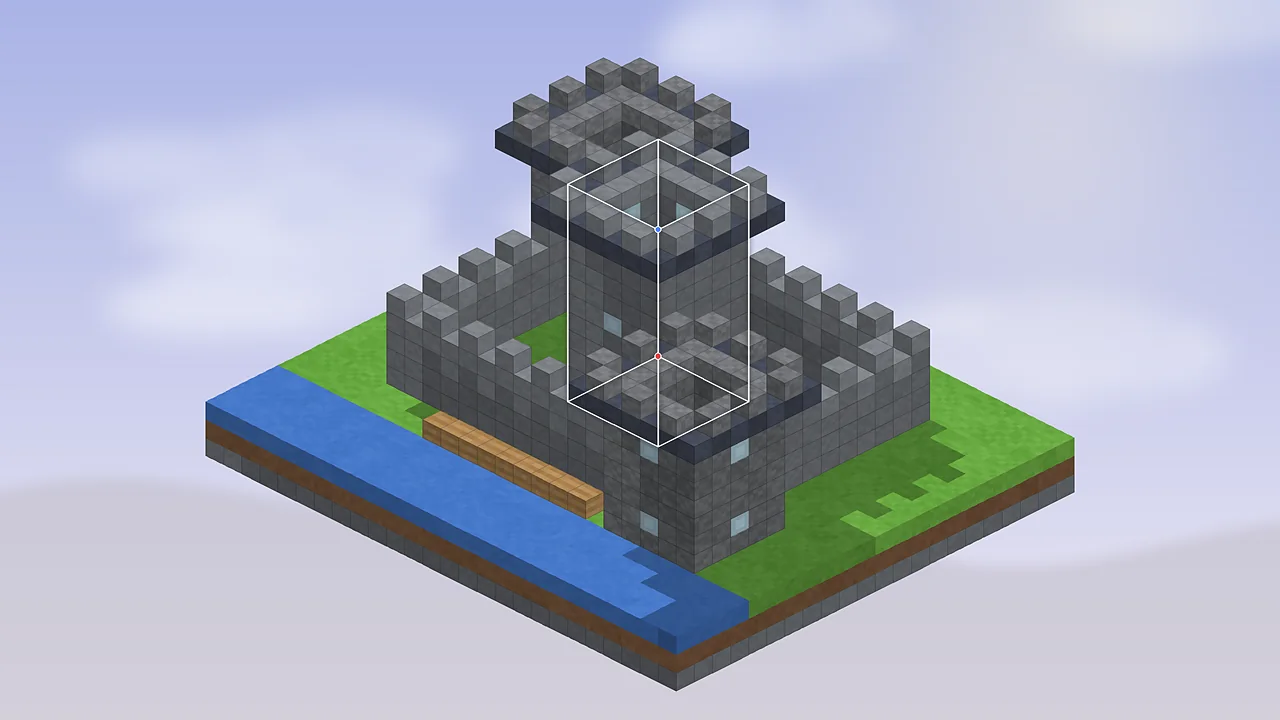
Every schematic can produce a list of the blocks it contains. Press M, open Schematic Placements (or Loaded Schematics), select your build and choose Material List. Litematica counts every block and item-form of a block, so a door counts once rather than twice, and double slabs count as two slabs.
Read the columns
The list shows each item, the total the schematic needs, how many are missing from the world, and how many you have available in your inventory. As you build, the missing number shrinks. You can sort by any column and hide items you already have enough of.
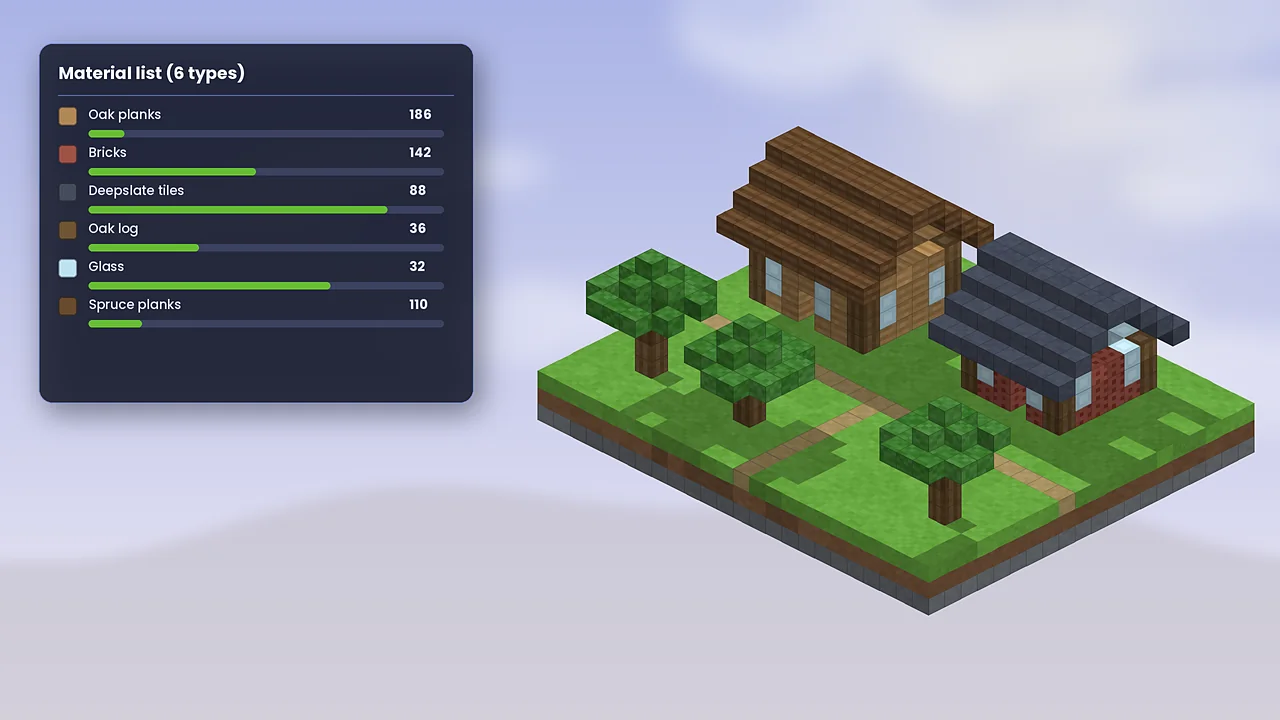
Pin it to your HUD
Toggle the info HUD from the material list screen and the remaining items appear on-screen while you play. Now you can mine, trade or craft and watch the counts fall without reopening menus. Adjust its position and scale in the configuration if it covers something important.
Limit it by layer
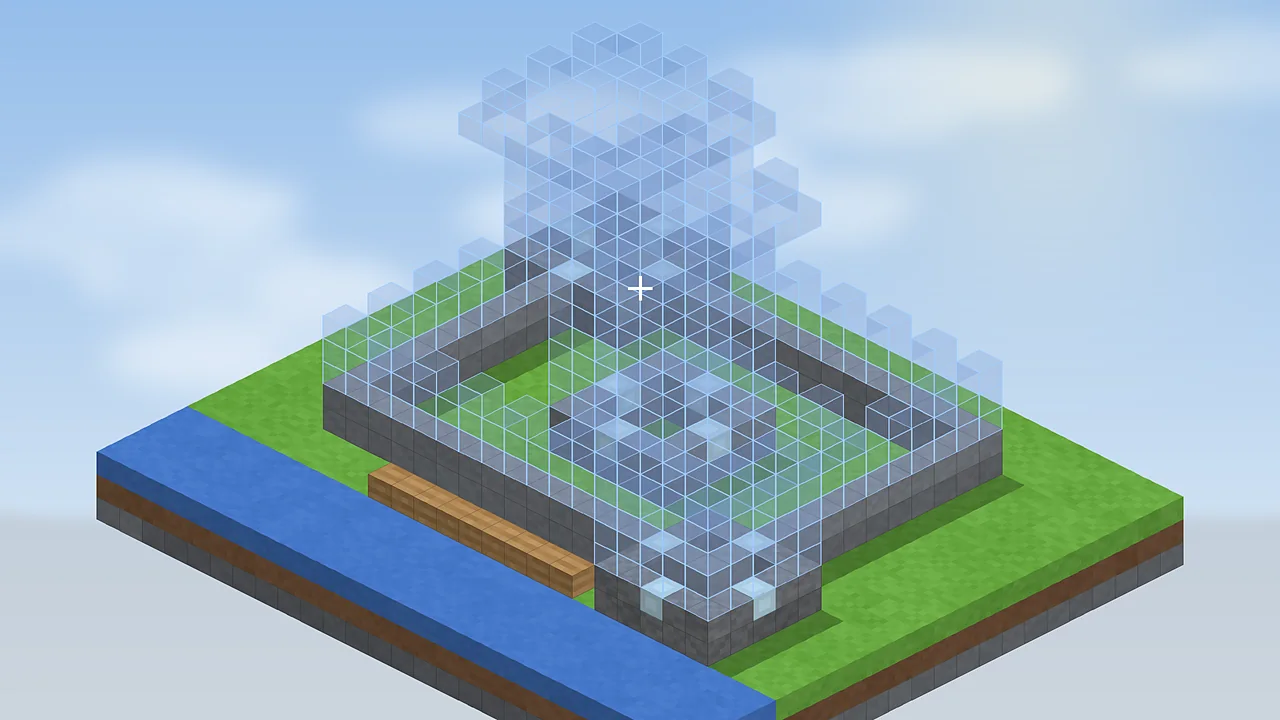
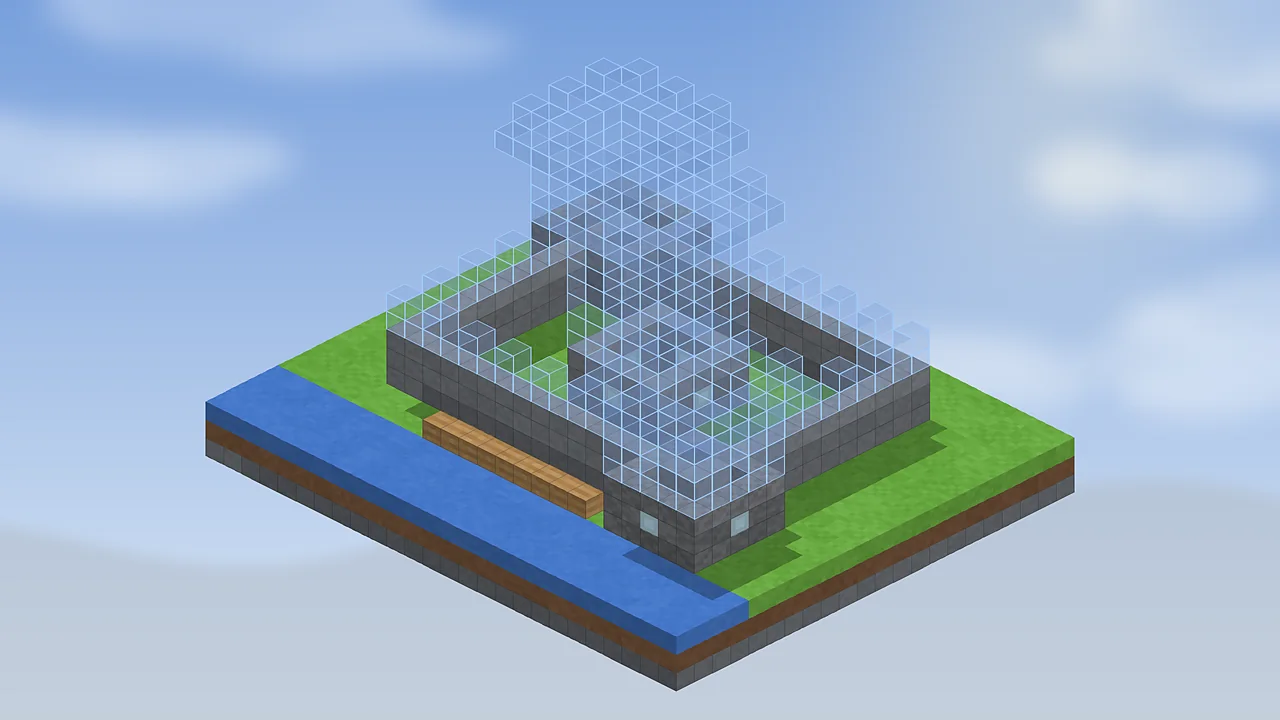
For big builds, the full list can be overwhelming: thousands of stone bricks, hundreds of glass panes. Switch the list to follow your current render layers so it only counts what you're building now. Gather for one floor, build it, then move up.
Plan your gathering
- Sort by total to see which few blocks make up most of the build.
- Convert counts into stacks and shulker boxes to plan trips.
- Craft intermediate blocks, such as stairs and slabs, near the site.
- Leave 5 to 10 percent spare for mistakes and redesigns.
Share or save the list
When building with friends, it helps to split the list. Litematica can write the material list to a text file from the list screen, which you can paste into chat or a shared document. Combine it with the Easy Place mode to build fast, and read our schematics guide to organise the files themselves.

Litematica Mod Editorial Team
Long-time Minecraft builders and technical players who test every guide in a clean Fabric install. About our team.