
How Litematica is organised
Litematica is a client-side mod for Minecraft Java Edition, written by masa, that saves builds as .litematic schematic files and projects them into your world as translucent guide blocks. It needs Fabric Loader and the MaLiLib library. If you haven't installed it yet, follow our installation guide first.
Almost everything starts from the main menu, opened with M. From there you reach four areas you'll use constantly: Area Editor for selections, Load Schematics for files, Schematic Placements for placed projections and Configuration for settings and hotkeys.
The tool item and modes
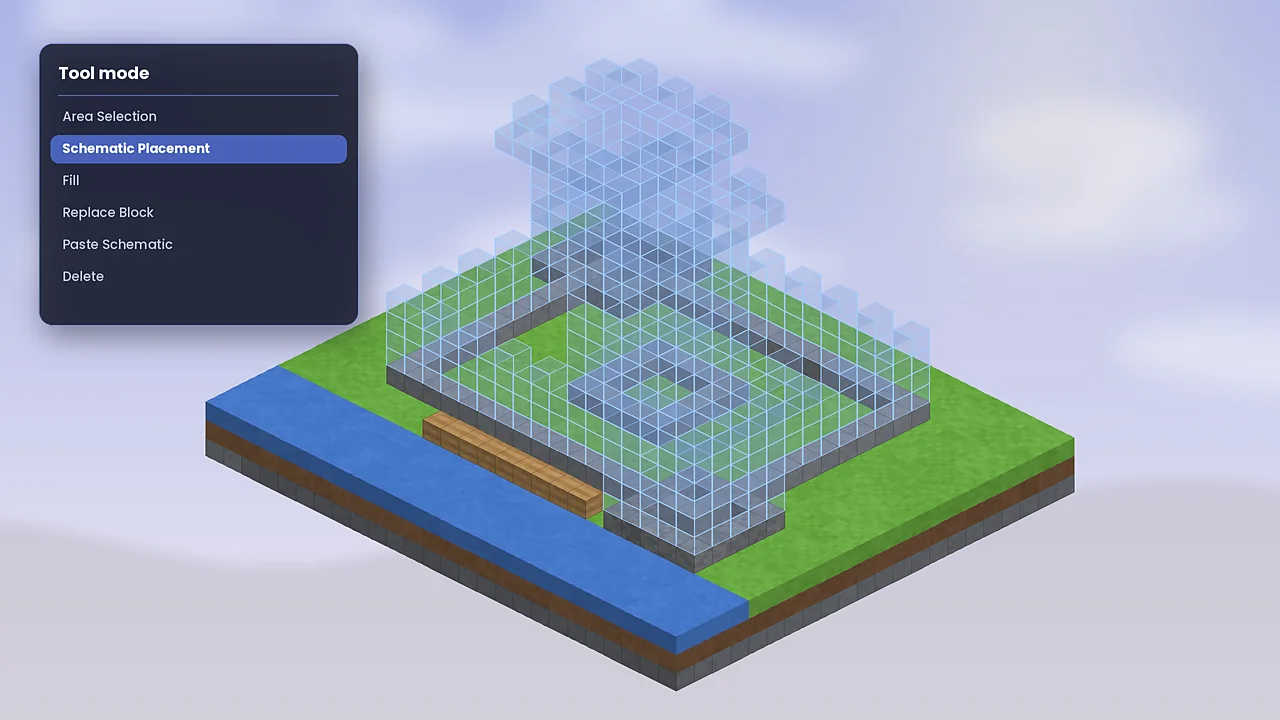
Litematica works through a tool item, a stick by default. While you hold it, the mod listens for clicks and scrolls. Hold Ctrl and scroll to cycle modes. The current mode shows in the bottom-left corner of the screen.
- Area Selection creates and edits boxes you want to save.
- Schematic Placement moves and adjusts projections in the world.
- Fill, Replace and Delete edit blocks in creative mode.
- Paste Schematic places a schematic into a creative world instantly.
Select an area
Switch to Area Selection. Left-click a block to set corner one and right-click another block to set corner two. A coloured box appears around the region. Use Alt + scroll to nudge the selected corner or box one block at a time. For odd shapes, add several boxes to the same selection; each becomes a sub-region of one schematic.
Save a schematic
With the selection ready, open Area Editor from the main menu and click Save Schematic. Give it a clear name, such as starter-house-v2, and confirm. The file lands in the schematics folder in your game directory. Our schematics guide explains how to organise, share and import files.
Load and place a schematic
Open Load Schematics, pick a file and press Load Schematic. Litematica creates a placement at your position and the build appears as ghost blocks. Stand where you want the build to start before loading, since that saves time lining it up afterwards.
Move, rotate and mirror
In Schematic Placements, choose Configure on a placement. You can type exact coordinates, rotate in 90-degree steps and mirror along either axis. You can also switch to Schematic Placement mode and use Alt + scroll to push the whole projection in the direction you face. Lock the placement once it's right, so you can't move it by accident.
Build with render layers
Large builds are easier one layer at a time. In the render layers menu choose Single layer, All below or a range, and step through with Page Up and Page Down. Blocks outside the range disappear, so you only see what you're building now.
Verify your build
The Schematic Verifier compares your world against the schematic and colours the differences: blue for missing blocks, red for wrong blocks, magenta for extra blocks and amber for wrong block states such as stairs facing the wrong way. Fix them from the list, and the entries vanish as you go.
Gather with material lists
Open a placement and choose Material List to see every block the build needs, how many are missing and how many you carry. Pin it to your HUD to track progress while you mine. Read more in our material list tutorial.
Speed up with Easy Place
Easy Place mode lets you right-click a ghost block to place the correct block with the correct orientation, as long as it's in your hotbar. Turn it on in Configuration, Generic. Some servers restrict it, so check the rules first. Our Easy Place guide covers the settings in detail.
Keyboard shortcuts
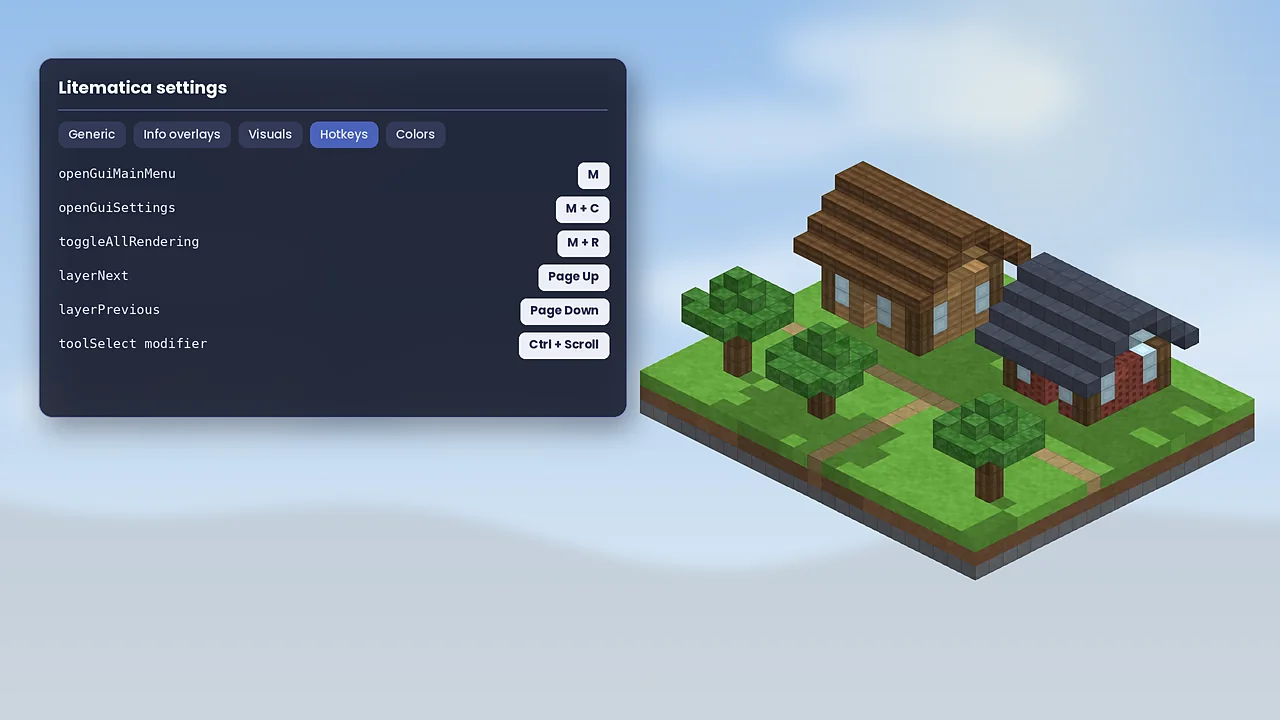
These are the default bindings in recent versions. You can rebind every one of them in the Hotkeys tab.
| Shortcut | What it does |
|---|---|
| M | Open the Litematica main menu |
| M + C | Open configuration and hotkeys |
| M + R | Toggle all Litematica rendering |
| Ctrl + scroll | Cycle tool modes while holding the tool |
| Alt + scroll | Nudge the selected box or placement |
| Page Up / Page Down | Move the render layer up or down |
Where to go next
Download the latest files from the download section, check the compatibility table for your version and loader, and keep the troubleshooting guide close for when something doesn't behave. Questions we hear often are answered in the FAQ.