Key takeaways
- The tool item (a stick by default) plus Ctrl + scroll controls everything.
- Left-click and right-click set the two corners of a selection box.
- Main menu (M) is the hub for loading, placements and material lists.
Meet the tool item
Most of what you do in Litematica happens while holding its tool item. By default that's a plain stick, and you can change it in the Generic settings. Holding the tool shows a small HUD in the corner of your screen with the current tool mode and what each click will do. If you don't see that HUD, check that Litematica is loaded by pressing M.
Switch tool modes
Hold the tool item and press Ctrl while scrolling the mouse wheel. The mode cycles through options such as Area Selection, Schematic Placement, Fill, Replace Block, Paste Schematic in World and Delete. The last four change the world directly and are meant for creative mode or singleplayer.
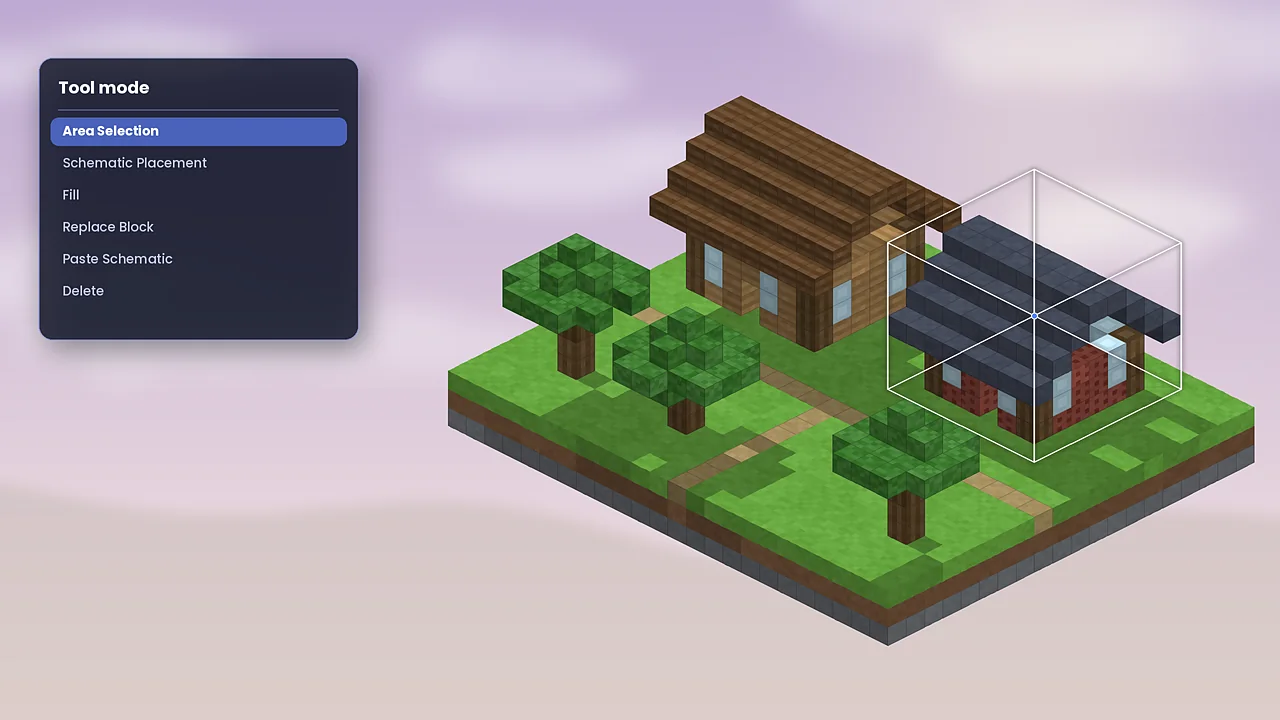
Select an area
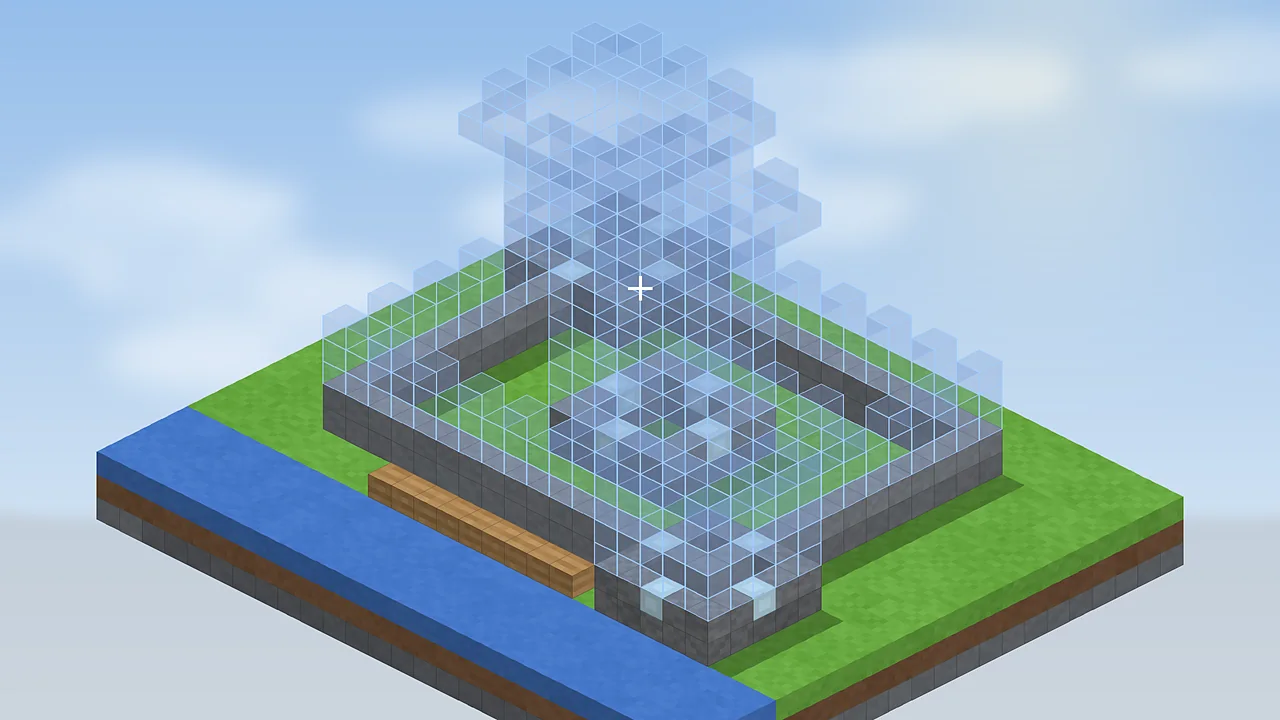
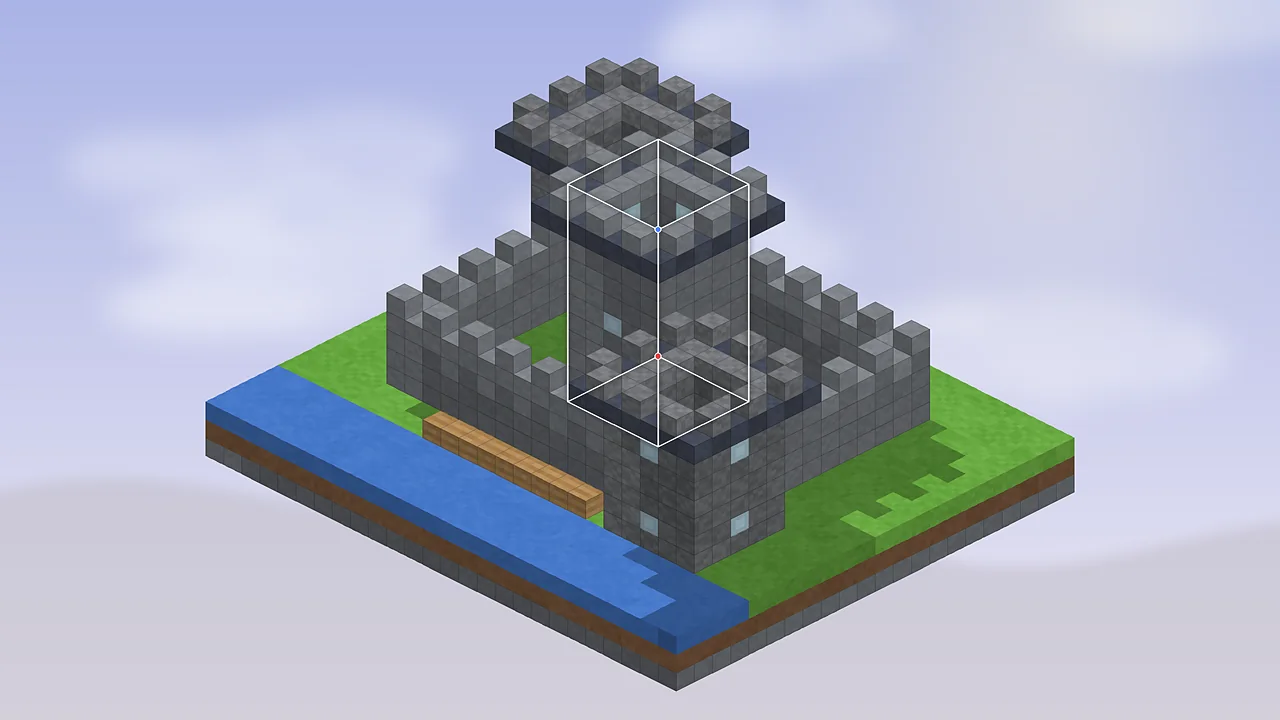
Switch to Area Selection. Look at one corner of the build and left-click to set corner 1, then look at the opposite corner and right-click to set corner 2. A box appears with coloured corner markers. If your build isn't a simple cuboid, open the area editor from the main menu and add more boxes, called sub-regions. They'll all be saved together.
To fine-tune a box, select it and hold Alt while scrolling to nudge it a block at a time. It's worth being precise here; an extra row of grass in the schematic will show up later as material you have to gather.
Save the schematic
Press M, open Area Editor (or Area Selection Browser) and choose Save Schematic. Give it a clear name and confirm. The file lands in your schematics folder as a .litematic file you can back up or share.
Load and place it
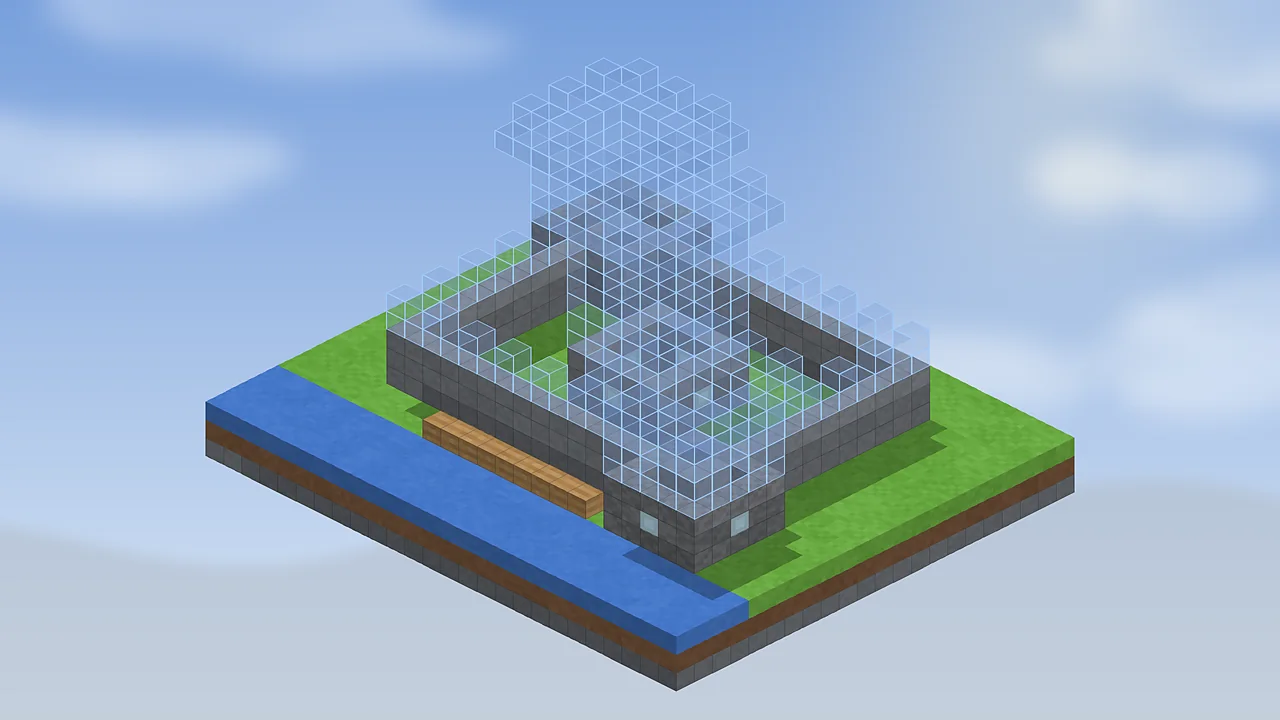
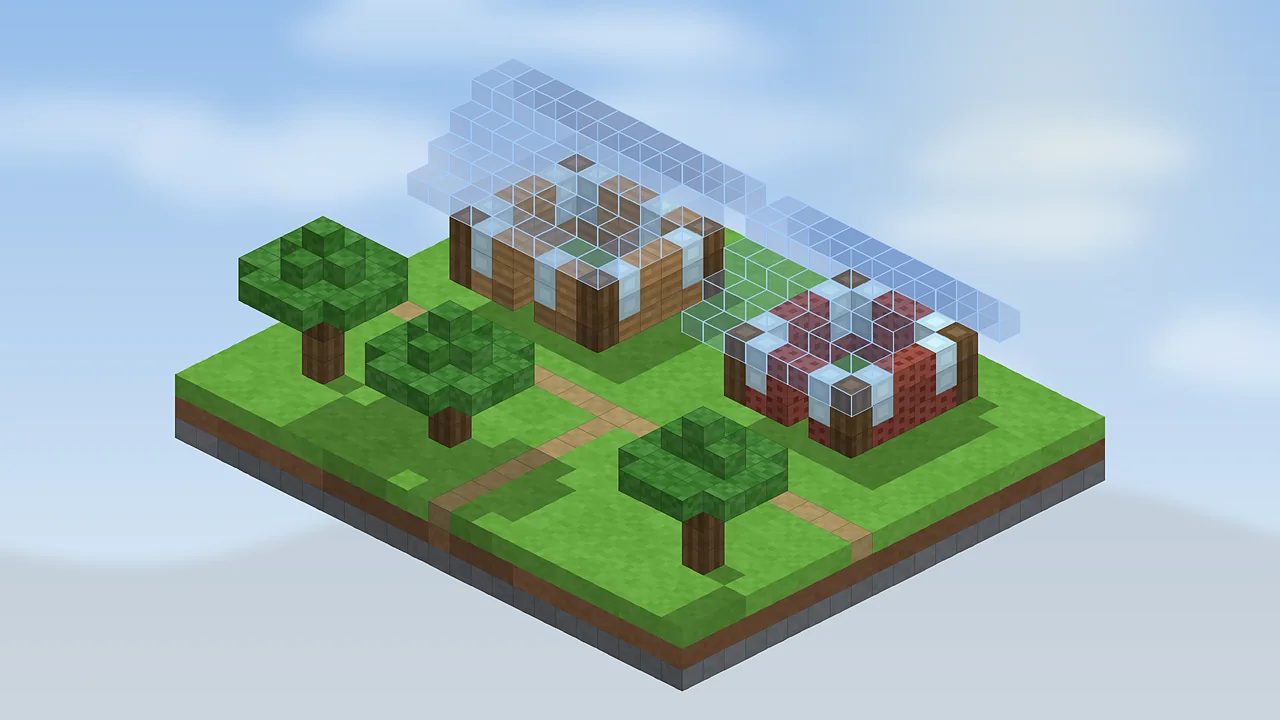
In another world, or later in survival, press M, choose Load Schematics, select your file and click Load Schematic. A placement appears at your position. Open Schematic Placements to move it, rotate it in 90-degree steps, mirror it, or lock it once aligned.
Build with the overlay
Now build into the ghost. Open the material list to see what to gather, switch render layers with Page Up and Page Down to focus on one level, and run the verifier to catch mistakes. When you're comfortable, try Easy Place mode to place blocks with the right rotation automatically. For every menu in more depth, see our full user guide.

Litematica Mod Editorial Team
Long-time Minecraft builders and technical players who test every guide in a clean Fabric install. About our team.