Key takeaways
- A .litematic file stores every block, its state and optional entities.
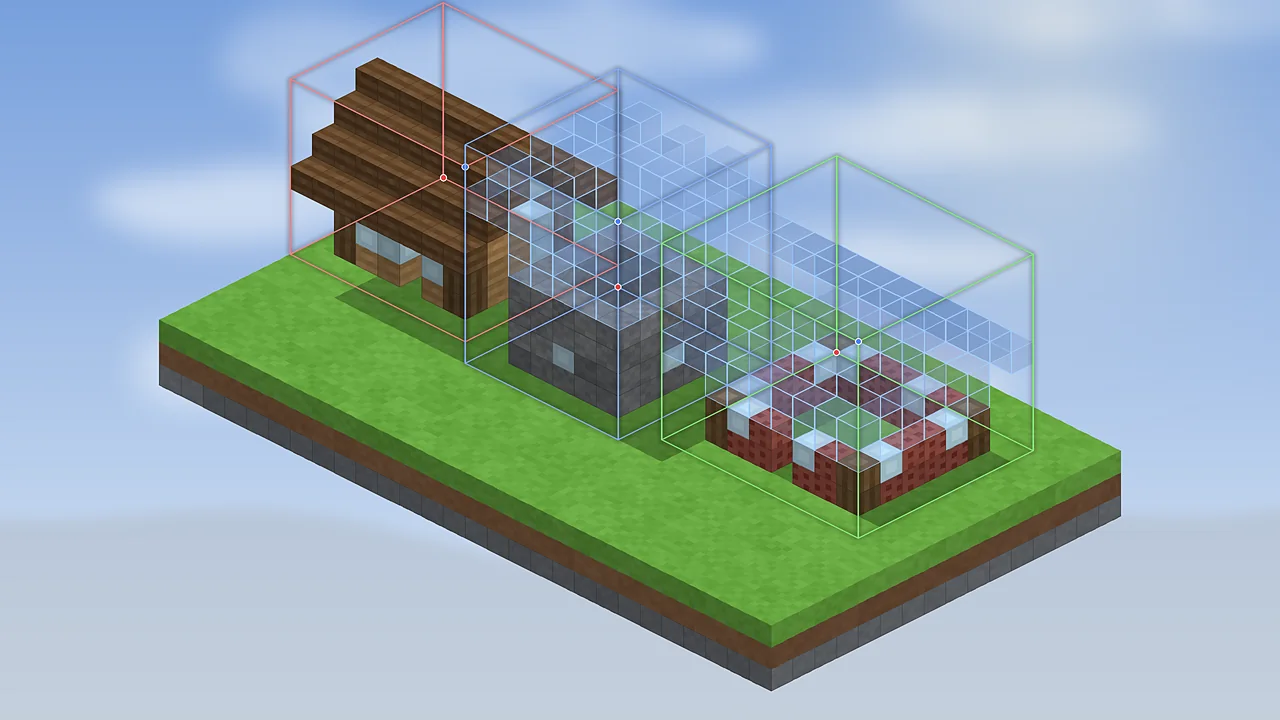
- One schematic can combine several sub-region boxes.
- Litematica can open many .schematic, .schem and .nbt files.
What a .litematic file is
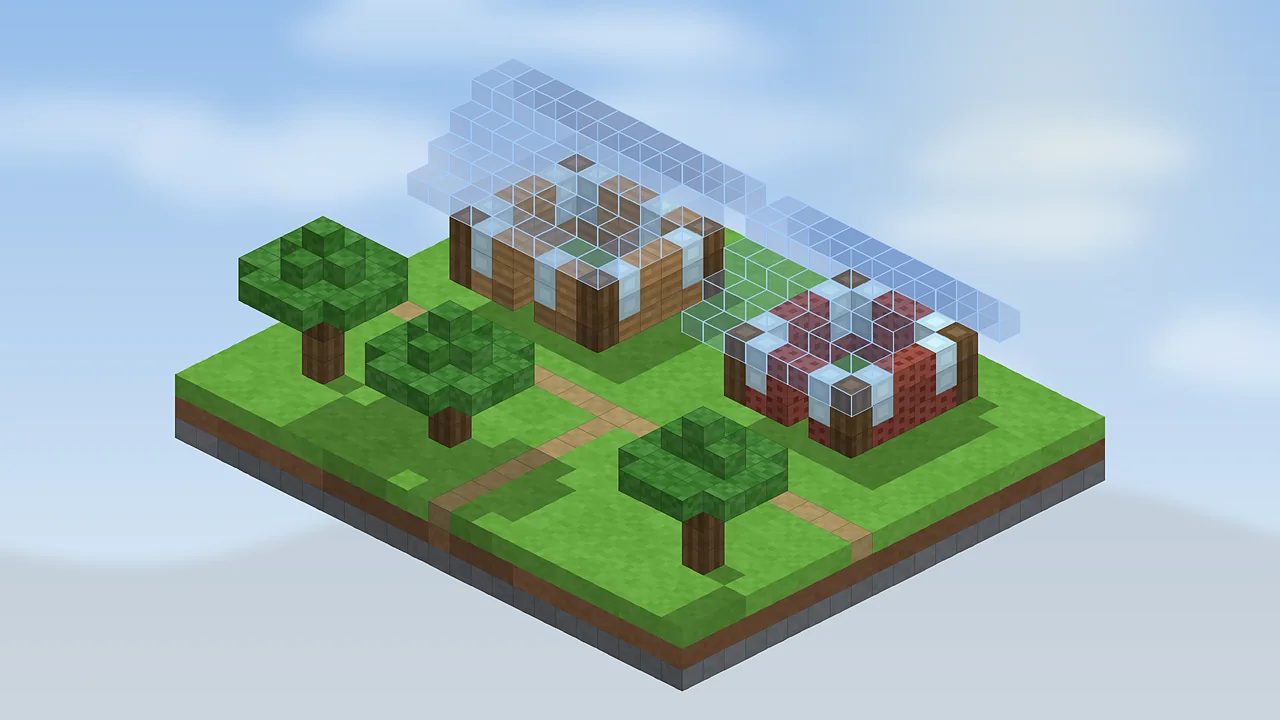
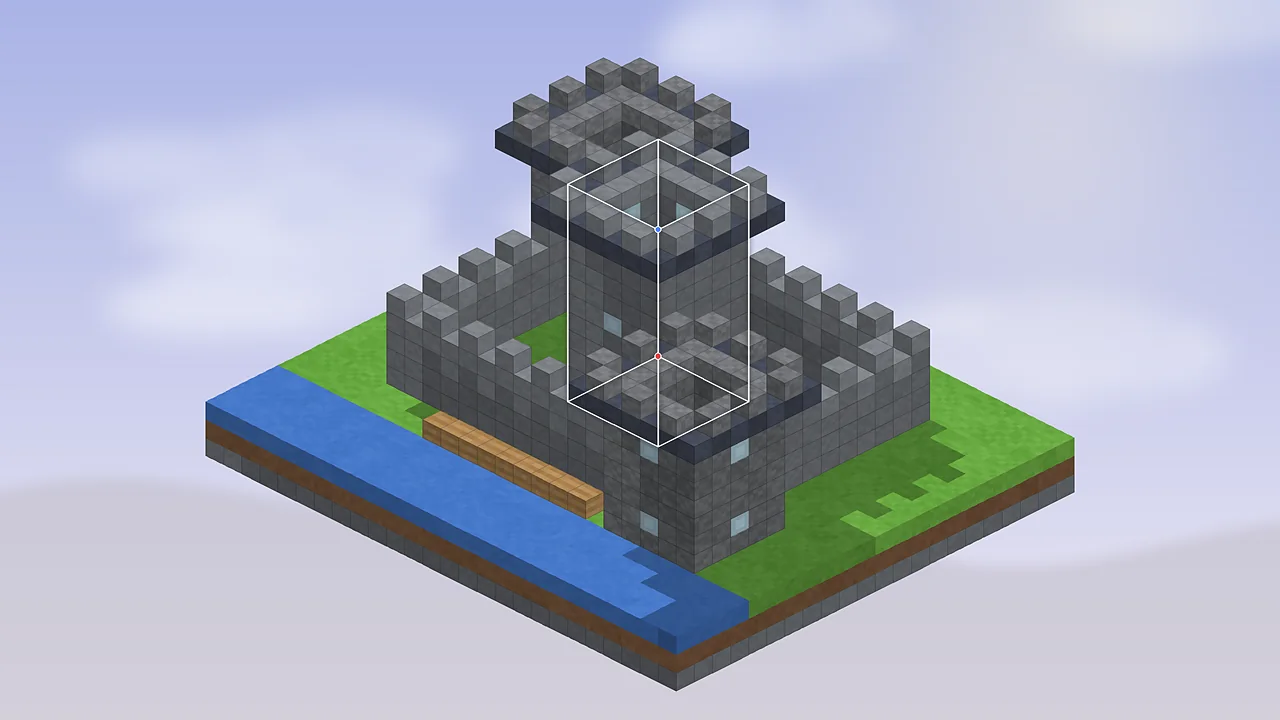
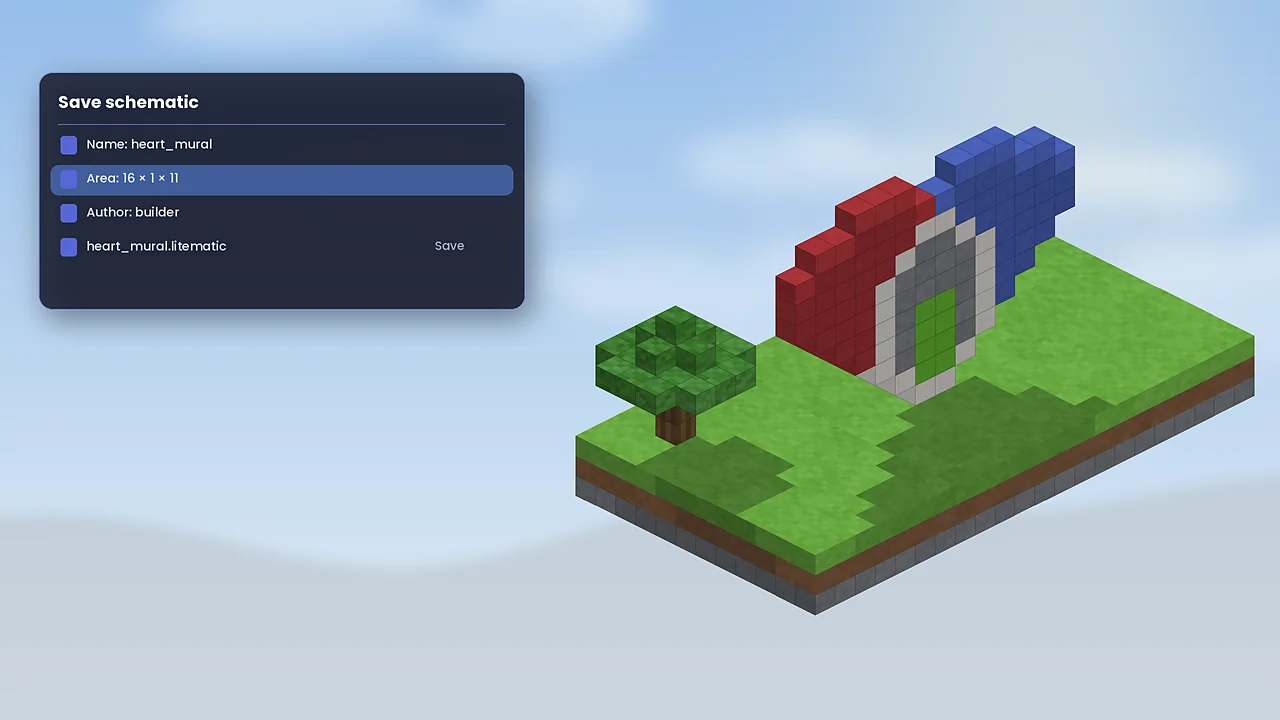
A Litematica schematic is a compressed file that records every block inside your selection, including its block state: which way a stair faces, whether a slab is top or bottom, the power level of redstone and so on. It can also store block entities such as chest contents and signs, plus regular entities if you choose. Because it's compressed, even a large castle usually stays well under a megabyte.
Sub-regions
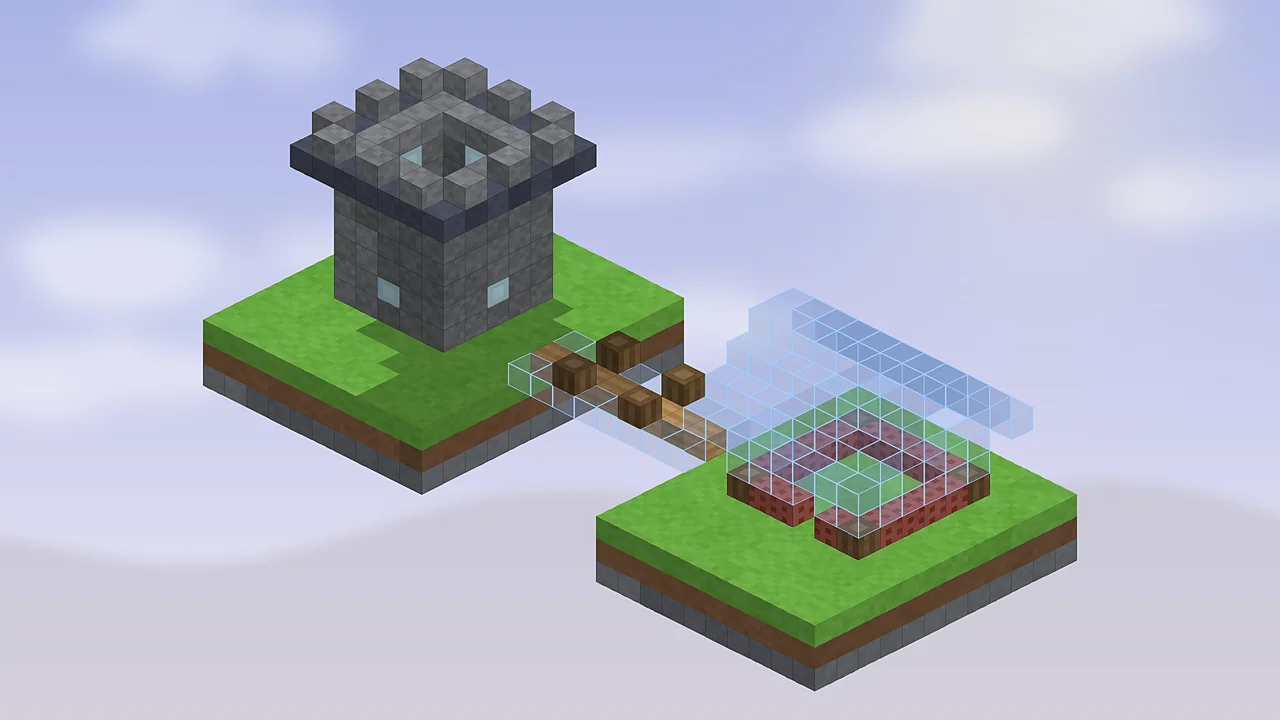
Real builds rarely fit in one box. A house with a porch, a tower and a wall is an L-shaped or scattered area. Litematica solves this with sub-regions: multiple boxes grouped into one selection. Each box keeps its own name and position, and in a placement you can move or hide sub-regions individually. That's handy when a friend wants your tower without the whole castle.
Where schematics are stored
Litematica reads and writes the schematics folder in your game directory: %appdata%\.minecraft\schematics on Windows, ~/Library/Application Support/minecraft/schematics on macOS and ~/.minecraft/schematics on Linux. You can create subfolders to organise projects, and the in-game browser lets you navigate them.
Opening other formats
Many builds online come in other formats. Litematica can open many older Schematica and MCEdit .schematic files, Sponge .schem files used by WorldEdit, and vanilla structure block .nbt files. Put them in the schematics folder and they appear in Load Schematics. Very old files from pre-1.13 versions may show some blocks incorrectly because block IDs changed; check them with the verifier.
Sharing schematics
To share a build, send the .litematic file itself. It works on any computer with a compatible Litematica version. On servers, the Syncmatica mod lets players share placements directly when the server installs it. When you download schematics from others, stick to trusted communities; a schematic can't run code, but it can contain huge areas that slow your game.
Tips for a tidy library
- Use version suffixes like
_v2instead of overwriting. - Add the Minecraft version to the name when sharing.
- Keep a
_wipfolder for unfinished captures. - Back up the whole folder to cloud storage.
Next, learn to follow a schematic in survival with the material list, or read the beginner tutorial if you haven't saved one yet.

Litematica Mod Editorial Team
Long-time Minecraft builders and technical players who test every guide in a clean Fabric install. About our team.